
How to Deposit on Playgram Casino (Telegram)
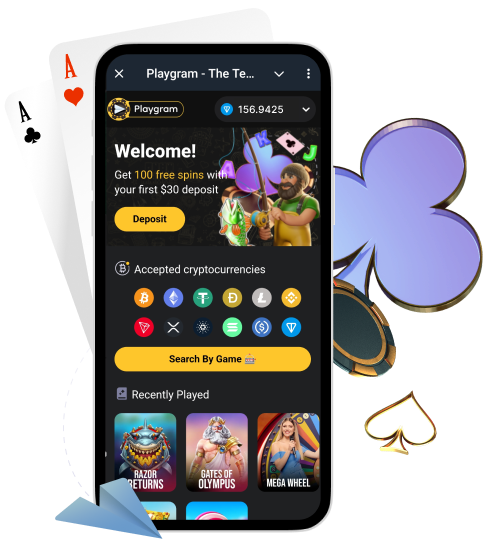
Depositing on Playgram happens inside Telegram through the in-bot cashier. The process is simple, but crypto has one critical rule: the network must match. This guide shows you how to confirm access first (especially if you are in Australia), where to find the deposit menu, how to pick the correct coin and network, what minimum deposit limits to respect, and what to do if your funds don’t credit.
If you want the full list of supported coins and minimums, keep payment methods bookmarked.
Before You Deposit: Confirm Access
Do not send crypto until you confirm you can access the cashier screens in the bot. This matters even more if you are in Australia, where access can be limited. Start here if needed: Australia access.
- Open the official bot and confirm the menu loads normally.
- Open the cashier/wallet area and confirm deposit actions are visible.
- Open withdrawal screen (even if you won’t withdraw yet) to confirm it loads.
- Open transaction history and confirm the account sections load correctly.
- If you see restriction messaging, stop and contact support before funding.
Where the Deposit Menu Is in Telegram
Telegram casinos typically place deposits inside a cashier or wallet menu. If you are new, follow these steps and you’ll find it fast.
- Open Telegram and search the official handle.
- Open the chat with @Playgram2bot and tap Start (or re-open the menu).
- Open the cashier/wallet section (look for Deposit / Wallet / Cashier).
- Select Deposit to view coin options.
- Choose the coin you want to send and confirm the network shown.
- Copy the deposit address (or use WalletConnect if offered).
- Send crypto from your wallet and save the TxID.
Choose Coin and Network Correctly
Most “missing deposits” are not missing at all — they were sent on the wrong network or below the minimum. Use this checklist every time.
- Select the coin in the cashier first (BTC is not USDT, and USDT is not “one network”).
- Confirm the network shown in the cashier (ERC20, TRC20, etc. as displayed).
- In your wallet, choose the same network before you send.
- Copy the address from the cashier and compare the first/last characters.
- Send at or above the minimum deposit threshold for that coin.
- Save the TxID and your timestamp immediately after sending.
Minimum Deposit Limits (Quick Table)
Below are common minimum deposit limits shown for Playgram’s cashier. Always confirm inside the bot for the exact network you selected.
| Coin | Minimum deposit | Network note |
|---|---|---|
| BTC | 0.0001 | Confirm BTC network |
| ETH | 0.001 | Confirm Ethereum network |
| USDT | 2.0 | Match the exact network shown in cashier |
| USDC | 5 | Match the exact network shown in cashier |
| TON | 0.1 | Verify TON address format |
| LTC | 0.01 | Confirm Litecoin network |
| SOL | 0.01 | Confirm Solana network |
For the full list (BNB, DOGE, TRX, XRP, ADA and more), see deposit minimums.
Deposit via Address: Best Practice
Manual address deposits are reliable if you do them carefully. Use this “no-mistakes” routine.
- Copy the address directly from the cashier screen you are about to use.
- Paste it into your wallet and verify the first 6 and last 6 characters.
- Confirm network selection once more before you hit Send.
- Send a single transfer (do not split into many micro-transfers).
- Save TxID + screenshot of the cashier screen showing the coin and network.
Deposit via WalletConnect: Step-by-Step
If WalletConnect is available in your cashier, it can reduce address copy mistakes by keeping actions inside your wallet approval flow.
- Open the cashier deposit screen and select WalletConnect.
- Choose your wallet provider and approve the connection request.
- Confirm the network and token shown in the cashier flow.
- Approve the transaction in your wallet.
- Save your TxID and check status in transaction history.
What to Save After Sending (TxID Pack)
Support cannot trace a crypto transfer without the right details. Save this packet right after you deposit — it solves 90% of cases fast.
| Item | Example | Why you need it |
|---|---|---|
| Coin | USDT | Identifies the asset you sent |
| Network | TRC20 (as shown in cashier) | Network mismatch is the #1 reason for issues |
| Amount | 25.00 | Confirms minimums and expected credit |
| TxID | 0x… / hash | Primary trace identifier on-chain |
| Time sent | [date] [time] AEST | Helps align with confirmations and logs |
| Destination address | Copied from cashier | Confirms the recipient used |
| Screenshots | Cashier + wallet transfer | Shows what you saw and what you did |
After you deposit, it also helps to understand withdrawal rules (especially fee conditions) before you plan a cashout.
How Long Deposits Take (What Is Normal)
Most deposits are quick, but “quick” still depends on network confirmations and chain speed. While you wait, use this checklist.
- Confirm your transaction is broadcast and has a TxID in your wallet.
- Open a blockchain explorer and check confirmation progress.
- Confirm the coin and network match what you selected in the cashier.
- Check in-bot history/transactions for any status updates.
- If it remains uncredited for a long time, contact support with your TxID pack.
Deposit Not Credited: Fast Troubleshooting
Below Minimum Deposit
- Compare the amount you sent to the minimum deposit for that coin.
- Confirm the minimum again in deposit minimums.
- Collect TxID + screenshots and contact deposit support.
Wrong Network Used
- Compare the network used in your wallet with the network shown in the cashier.
- Collect coin, network used, amount, TxID, time sent, and destination address.
- Do not send another transfer “to fix it”.
- Contact deposit support with the full packet.
Not Enough Confirmations Yet
- Open the explorer and check confirmation count.
- Compare the time sent with typical chain confirmation pace.
- Wait a reasonable confirmation window before escalating.
- If confirmations stall, message deposit support with TxID.
Address Copy Error / Clipboard Swap
- Compare the destination address in your wallet to the cashier address you used.
- Check whether you copied from the correct, current cashier screen.
- Collect screenshots (cashier + wallet transfer) and your TxID.
- Send everything to deposit support.
WalletConnect Session Failed
- Disconnect WalletConnect and reconnect from inside the cashier flow.
- Update Telegram and your wallet app, then try again.
- Capture the error screen if it repeats.
- Contact deposit support with screenshots and wallet provider.
Sent From an Exchange With Extra Requirements
- Some exchanges delay withdrawals for internal reviews, even if the TxID exists.
- Check if the exchange requires a destination tag/memo for your coin.
- Collect TxID and the exchange withdrawal receipt.
- Contact deposit support if the transfer is confirmed on-chain but still not credited.
Wrong Network: What to Do (and What Not to Do)
If you sent crypto on the wrong network, speed and accuracy matter. Keep it clean.
- Do: collect TxID, coin, network used, amount, time, and destination address.
- Do: take screenshots of the cashier screen and wallet transfer details.
- Do: contact support with one complete message.
- Don’t: send more transfers to the same address hoping it “unlocks” the first one.
- Don’t: share TxID and wallet details publicly in community chats.
- Don’t: follow unofficial “recovery” accounts.
Security Tips for Deposits
- Use only official handles and avoid forwarded “mirror bots”.
- Copy addresses only from the live cashier screen you are using.
- Verify the first and last characters of the address before sending.
- Enable Telegram 2-Step Verification and protect your device.
- Do not share cashier screenshots that reveal addresses or balances in public chats.
Contact Support About a Deposit
If your deposit doesn’t credit, send one complete message. This saves time and prevents repeated questions.
| Field | Example | Notes |
|---|---|---|
| Issue type | Deposit not credited | Be specific |
| Coin + network | USDT (TRC20) | Must match cashier selection |
| Amount | 25.00 | Include exact amount |
| TxID | 0x… | Required for tracing |
| Time sent | [date] [time] AEST | Include timezone |
| Destination address | Copied from cashier | Helps validate recipient |
| Screenshots | Cashier + wallet transfer | Attach both |
Use the full template on deposit support. If you want to go back to the hub, open Playgram home.
FAQ
Where do I deposit in the Telegram bot?
Open @Playgram2bot, go to the cashier/wallet menu, and select Deposit. You’ll then choose a coin and the network shown in the cashier.
What is the minimum deposit for USDT?
USDT is commonly listed with a minimum deposit of 2.0, but always confirm in the cashier for your selected network before you send.
Why does my deposit not credit immediately?
Most delays come from network confirmations, wrong-network transfers, or deposits below minimum thresholds. Use TxID to track confirmations and compare coin/network to the cashier selection.
What is a TxID and where do I find it?
A TxID is the transaction hash. You can find it in your wallet’s transaction details and use it to track the transfer on a blockchain explorer.
How do I choose the correct network?
Select the coin in the cashier first, then match the network shown there to the network you choose in your wallet before sending.
Can I deposit via WalletConnect?
If WalletConnect appears in your cashier options, yes. Use the WalletConnect flow to connect your wallet, approve the transfer, and save the TxID.
What happens if I send below the minimum?
It can fail to credit automatically. Save TxID and contact support with your details so the transfer can be reviewed.
What if I send on the wrong network?
Do not send more transfers. Collect TxID, network used, and screenshots, then contact support immediately with one complete message.
What details should I send support for a missing deposit?
Coin + network, amount, TxID, time sent (with timezone), destination address from the cashier, and screenshots of the cashier and wallet transfer.
Do I need verification before depositing?
Deposits are typically straightforward, but verification can be requested later for withdrawals or security/AML checks. Keep your documents ready if requested.